
Need help using our website? Choose a topic below. Our guides include simple step-by-step instructions with pictures and videos.
Logging into your Prachyam account only takes a few seconds.
If you originally signed up using Google or Apple, simply click Continue with Google or Continue with Apple instead of entering your password.
Creating a Prachyam account is quick and easy.
You can create an account in any of the following ways:
To create an account using your email, visit /sign-up and complete the registration form.
Enter the following information:
After completing the form, click Create Account.
If you've forgotten your password, you can reset it in just a few minutes.
If you don't receive the email within a few minutes, please check your Spam or Junk folder.
Open the email, click the password reset link, create a new password, then return to /login and sign in using your email address and new password.
If you sign up using your email address, you'll need to verify your email before using your account.
The first time you log in using your email and password, we'll automatically send a verification email to your inbox.
Can't find the email?
Purchasing a subscription gives you unlimited access to Prachyam's premium content.
We currently offer the following plans:
Lifetime Membership and Lifetime Patron plans include additional exclusive benefits not available with standard subscriptions.
All Prachyam subscriptions renew automatically at the end of each billing cycle.
Depending on your plan, your subscription will renew:
As long as your payment method remains valid, there's nothing you need to do. Your subscription will continue without interruption.
If you'd like to cancel your subscription, simply contact our support team.
Your subscription will remain active until the end of your current billing period unless otherwise specified.
If your payment fails, don't worry—we offer multiple payment options to help you complete your purchase.
We currently support:
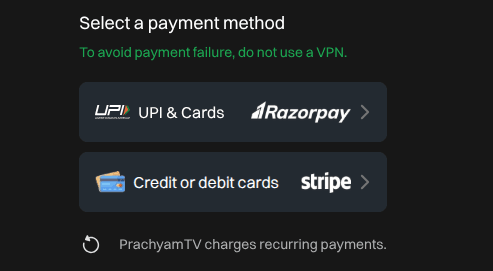
If one payment gateway doesn't work, try completing your payment using the other available gateway.
If both payment methods fail, please check the following:
If you're still unable to complete your payment, contact us at support@prachyam.com, and we'll be happy to help.
You can easily cast videos from Prachyam to your Chromecast-enabled TV using either the built-in Cast button or Google Chrome.
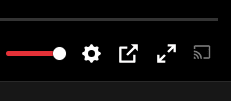
Tips:
If you're still having trouble casting, see the Chromecast Not Working guide.
If you'd like to change your password, you can do so by resetting it.
If you don't receive the email within a few minutes, please check your Spam or Junk folder.
Open the email, click the password reset link, and choose your new password.
Once your password has been changed, return to the Login page and sign in using your email address and your new password.
If you'd like to change the email address associated with your Prachyam account, our support team will be happy to assist you.
For security reasons, we may ask you to verify your identity before updating your email address.
Most login issues happen when users try to sign in using a different method than the one they used when creating their account.
The most common issue: Users who created their account with Google or Apple try to log in using an email address and password. Since no password was created for those accounts, this login method won't work.
If you've forgotten your password for an email account, visit the Forgot Password page to reset it.
If you're still unable to access your account, please contact us at support@prachyam.com, and we'll be happy to help.
If a video isn't playing, the first thing to check is your internet connection.
If your internet connection is working properly and the video still won't play, please contact our support team.
Email us at support@prachyam.com and include the link to the video that isn't playing. This will help us investigate and resolve the issue as quickly as possible.
If you're unable to cast videos to your TV, your television may not support Google Chromecast.
Many Smart TVs support casting, but some models do not. If your TV isn't Chromecast-compatible, you can still watch Prachyam by using your device's Screen Mirroring or Screen Casting feature.
If your TV supports Chromecast but you're still unable to cast, ensure both devices are connected to the same Wi-Fi network and try restarting your TV and phone before trying again.
If you continue experiencing issues, please contact us at support@prachyam.com.
You can enjoy Prachyam on the following devices:
Not yet.
We are currently working on offline downloads. This feature will be available in a future update.
For information about cancellations and refunds, please visit our Cancellation & Refund Policy.